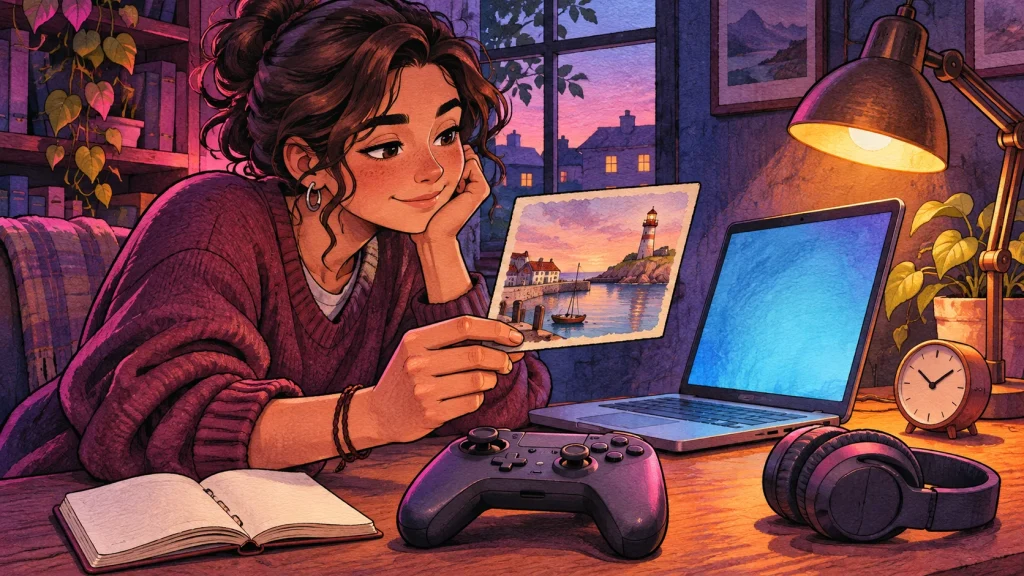

The artwork gets you first. A little harbour, a lighthouse on a cliff, warm windows glowing against a dark sea. Then you read the description: a mystery to unravel, interesting people to meet, a place to explore at your own pace.
Lovely. You have half an hour before you need to do something else, and this looks like somewhere you would enjoy spending it.
Before you settle in, though, a few everyday questions are worth answering. Will it work on your laptop? Can you use the controller beside you? If you have to stop halfway through a conversation, will you be able to pick it up again?
Reading a store page with those questions in mind can help you find a game that fits the evening you actually have. You can still fall for the lighthouse.
Start with what you feel like doing
Some evenings you want to think hard. Others, you want to wander around somewhere interesting and see what happens. You might be in the mood for a long conversation, but have no patience for searching a room for the last tiny object.
Before reading every feature on the page, give yourself a simple starting point: “I want to explore for a while, read at my own speed and be able to stop when I need to.” Or perhaps: “I want something fast that I can play with a controller.”
That little sentence helps you notice the details that matter. A long opening might be exactly what you want on a free afternoon. Tonight, with thirty minutes available, you may want to know how soon you get to do something yourself.
You do not need a spreadsheet. Just keep one or two needs in the back of your mind as you scroll. The important ones deserve an answer. The rest can be part of the surprise.
Look for the bit you will spend your time doing
A beautiful setting tells you where the game takes place. Look a little closer for what happens while you are there.
Read the words describing your actions. Are you choosing what to say, arranging clues, dodging enemies, tending plants or reading letters? Those details tell you more about how an evening might feel than a broad description such as “an unforgettable adventure”.
The trailer can help here. Look for a stretch that lets an action play out. How does the character speak to someone? What happens when an object is selected? How much reading appears between actions? A quick montage may show plenty of lovely places without giving you much time to see what playing involves.
There is nothing wrong with enjoying that montage. Just notice which questions it has answered and which it has skipped. If you see a few seconds of a puzzle, you have seen that puzzle at that moment. You have not yet learnt how often puzzles appear or how much help the game offers.
Tags can point you towards something interesting, too. On Steam, tags can come from developers, players and moderators. Treat them as useful clues, then look for the particular thing you want in the description. Two games labelled as mysteries might involve very different amounts of reading, searching and deduction.
Check the small things that matter to you
Now for the less glamorous part of the page. Give the listed operating systems and hardware requirements a look before getting too attached to that harbour. Compare them with the machine you will actually use. If you are unsure about a component name, leave that question open until you can check it properly. The trailer cannot tell you how the game will run on your laptop.
Do the same with controls. Look for information about your controller and any limitations the page mentions. Think about the whole session, including menus and typing a name. If you want to stay comfortably on the sofa, knowing whether you will need a keyboard is useful.
For a story with lots of dialogue, check the language details as well. Steam lists interface, full audio and subtitle support separately. Its documentation also distinguishes the language of the store page from the languages available inside the game. A description you can read easily does not, on its own, tell you which parts of the game use that language.
Then think about your screen. A dialogue box might look clear in a large screenshot but leave you wondering how it will feel on a small display. If text size matters to you, look for an answer about text size. A picture can show you how one screen looks; it cannot show you every setting.
Turn “this looks relaxing” into a useful question
Words such as gentle, cosy and relaxed can help describe a mood. Your own idea of a comfortable session may depend on something much more specific.
Perhaps you want time to read a response before choosing it. Perhaps you need to turn down the music without losing the dialogue. Or perhaps being able to save and leave at any moment matters more than anything else.
On Steam, developers can list individual accessibility features on the store page. These include text-size options, subtitle options and playing at your own pace. Open the details and look for the feature you need.
If an answer is missing, you have found something to check. You have not discovered why it is missing. And if a feature is listed but you need to know more about how it works, the creator’s own explanation may help. “Can I enlarge the dialogue text?” is a much easier question to answer than “Will this be comfortable for me?”
Let’s try it with that island mystery
Here’s a made-up description for our island mystery:
Explore a hand-drawn island mystery at your own pace. Read letters, question residents and piece together the history of a vanished observatory. Play six chapters with mouse-and-keyboard or controller support.
We are still planning that half-hour session on a laptop, with a controller handy and a possible interruption.
The description tells us that reading and conversation are part of the game. It mentions chapters and says controller support is available. That is a promising start for someone who fancies a quiet mystery.
There are a few things left to find out. Six chapters could mean all sorts of things for the length of a session. “At your own pace” sounds encouraging, but we still want to know how saving works. And we would like to check the details for the controller we have.
Suppose a screenshot shows a letter beside a character portrait. We can look at the layout and see how much text is visible. If the letter is easy to read in that image, that is useful to notice. We still have no answer about changing the text size, or what happens when a longer letter appears.
By now, we have a short, sensible list: saving, controller details and text options. Another scenic screenshot probably will not answer those questions. The next useful stop might be the game’s FAQ or accessibility page.
Nothing here requires us to decide whether the game is good. We are finding out whether it suits this particular evening. It might turn out to be a better choice for a longer session, and that is useful to know too.
Leave yourself one good question
Follow the questions that matter to the creator’s official FAQ, manual or support pages. Check that an answer refers to the platform you will use. If you find an old announcement about a feature being added, look for whether it is available now before relying on it.
If you need to ask the creator, keep it simple. “Can I save during a conversation in the current PC version?” gives them something concrete to answer. You do not need to explain your entire evening.
Nor do you have to solve every unknown before trying something new. Focus on the detail that could get in the way of the session you want. You can leave the shape of the mystery, the personalities of the residents and the view from the lighthouse for later.
By the time you close the page, aim to have a rough idea of what you will be doing, whether your setup suits it and how you can stop and return. If one important question remains, you know where to start next.
The excitement can stay. You have simply given it somewhere practical to land. Now that inviting little harbour comes with a clearer idea of how you might spend your time there.